
Teacher mode: how to generate tutorials with macros (visually)
Turn on the macro, program once and the interactive tutorial is generated by itself, with steps that check themselves. Then publish it on the community Tutorials page.
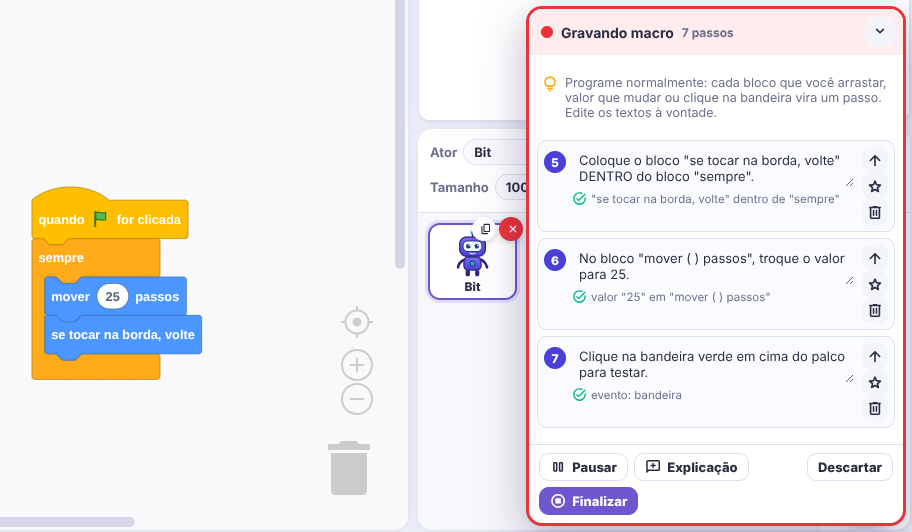
A macro is a recording of your actions. In teacher mode BlocosIA Studio watches what you do in the editor and writes, by itself, an interactive tutorial just like the official ones: each step has a text and an automatic check (the student moves on only when it is done right).
1. Turn on the macro
- In the editor, click Tutorials (top) › Teacher mode › Record tutorial with macro. You can also open it directly: /editor?professor=1.
- Choose how students start: New project (recommended) or Use this project as the starting point (the sprites, costumes and blocks already there go along).
- The red "Recording macro" panel appears in the corner. That's it: just program.
2. Program — each action becomes a step
| What you do | Step the macro writes | What is checked |
|---|---|---|
| Drag a hat block (e.g. when green flag clicked) | Drag the block "…" to the code area | the block exists |
| Snap a block under another | Snap the block "…" under "…" | the block is in that hat's script |
| Put a block inside "forever", "if", "repeat" | Put the block "…" INSIDE the block "…" | the block is inside that mouth |
| Drop a round block into a slot (e.g. pick random) | Snap the block "…" into the slot of "…" | the block is in that slot |
| Change a number or text | In the block "…", change the value to 50 | the value matches |
| Pick an option in a menu | In the block "…", choose "…" | the option matches |
| Click the green flag, the sprite or press a key | Click the green flag… | the event happened after the step began |
| Choose another sprite or the Stage | Click the sprite "…" | the right sprite is selected |
| Add an extension or create a variable | Add the extension "…" | the extension/variable exists |
Example: with the macro on, building this program
• evt_bandeira
• ctl_sempre
  • mov_mover [PASSOS: 10]
  • mov_quicar
the macro generates: 1) Click the sprite; 2) Drag "when green flag clicked"; 3) Snap "forever" under it; 4) Put "move 10 steps" INSIDE "forever"; 5) Put "if on edge, bounce" INSIDE "forever"; 6) Click the green flag.
Tips:
- Dragging the same block twice replaces the step instead of repeating it. Deleting the block (trash) removes the step.
- Repeated blocks become "One more: …" and check the count.
- The student's Show me where button opens the block's category by itself.
3. Review in the panel
- Edit the text of any step (click the sentence). Write the way you talk to your class.
- ⬆ Up changes the order; ⭐ marks it as a challenge (optional, can be skipped); 🗑 deletes.
- Explanation inserts a reading-only step (unlocks after a few seconds — you choose how many).
- Pause to do something without recording (tidy up, test).
4. Finish, test and publish
Click Finish: give it a title, a summary, the level, the color and the icon.
- Test as a student opens another tab with the tutorial from the start (that tab does not save over your project).
- Download file creates a
.blocosia-tutorial.jsonto send by e-mail, Classroom or USB stick. Students open it in Tutorials › Open tutorial file. - Publish to the community (sign in with Google) creates the link
/editor?macro=…and the tutorial shows up on the public Tutorials with Macros page, with search by level and language.
5. Good practices
- Record in small steps: one block at a time. Tutorials with 5 to 12 steps work best.
- Use Explanation to tell the why ("forever repeats forever").
- End with a challenge ⭐ ("change 10 to 50").
- Record in your class's language: step texts are not translated.